![Asset 5@3x-8.png]](https://help.snaplyphoto.com/hs-fs/hubfs/Logo/Asset%205@3x-8.png?height=40&name=Asset%205@3x-8.png)
Step 1.
Go to www.SnaplyPhoto.com and click on 'order now' on the top right of the page.

Step 2 - property details
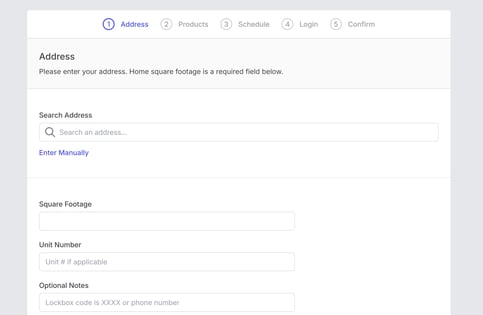
You will automatically be brought to our order form where you are prompted to fill out out the property address, total square footage, and access information. Once filled out, click on 'next step'.
Step 3 - sign in / create account
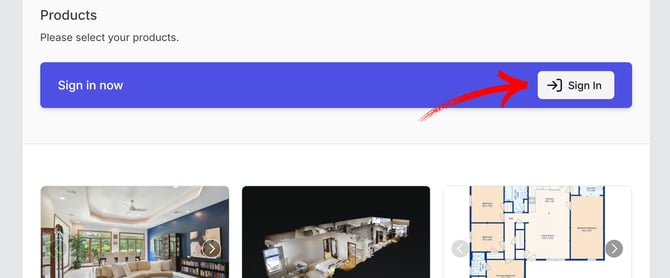
If you already have an account, but you are not signed in yet, this is where you can sign in. If you don't have an account yet, you can easily create one without losing your progress! To do so, just click on 'sign in', fill out your email address, and click on 'check email'. Fill out the required information to complete your account.
You can also choose to log in or create an account after selecting your time and date for the appointment.
Step 4 - select products
Once you are signed in, you are ready to select the main products that you would like to order. Look for the product(s) that you want to add and click on 'add'. Then, click on 'next' at the bottom of the page. Now you can see our add-on products, which you can also add to your order by clicking on 'add'. Once you have selected all the products that you need, click on 'next step' to set up a time and date for your appointment.
Step 5 - select the photographer, time and date for the appointment
Now you can see all our availability based on the property address and the products you have selected. You can either see the availability for all available photographers (all providers), or you can see the availability for a specific photographer if you already know who you want to book for this appointment. If a particular photographer has a travel fee for your property, it will say so next to their name.
Select the date and time that works best for you, and select 'next step' on the bottom right.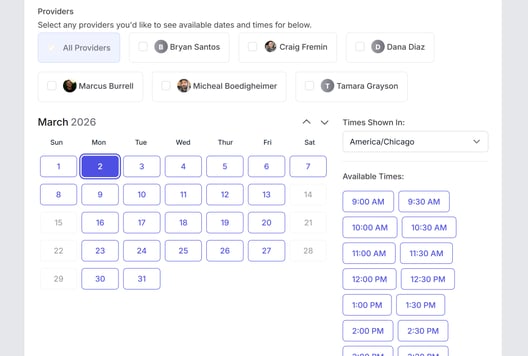
Step 6 - finalizing your order
This is the last step. Here you can verify the order details, add a coupon code if you have one, and fill out your payment information. Payment information is required before you can confirm the appointment. Select the check box next to 'Save this payment method for future payments' if you wish to save your card information for future orders. Click on 'pay and confirm' to confirm the appointment.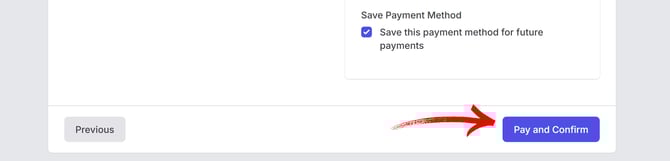
Congratulations! Your order has now been placed. You will receive a confirmation email of the appointment.